The Definitive Guide to Powering Down Your iPad 10th Generation
So, you've got the sleek iPad 10th Generation in hand, a marvel of modern design and utility. But whether you're looking to troubleshoot a minor glitch, conserve battery life for an extended period, or simply give your device a proper rest, knowing the Standard Power Off Procedure for iPad 10th Generation is fundamental. It's more than just tapping a screen; it's about understanding your device and making sure it serves you reliably for years to come.
As a seasoned tech guide, I've seen countless users grapple with the nuances of powering down their devices. While it might seem straightforward, a proper shutdown ensures your iPad is truly off, not just sleeping. This guide will walk you through every method, from the quick button press to the settings menu, and even what to do if your iPad decides to be a bit stubborn.
At a Glance: Powering Off Your iPad 10
- Standard Shutdown (Buttons): Press and hold the top button and either volume button simultaneously. Slide to power off.
- Standard Shutdown (Settings): Go to Settings > General > Shut Down. Slide to power off.
- Turning On: Press and hold the top button until the Apple logo appears.
- Force Restart (for unresponsive devices): Quickly press/release Volume Up, then quickly press/release Volume Down, then press and hold the Top button until the Apple logo appears.
Why Your iPad Needs a Proper Power Off (Beyond Just a Nap)
Think of your iPad as a mini-computer that’s always on, always processing, even when the screen is dark. That's "sleep mode," and it's fantastic for quick access. But there are times when a full shutdown is preferable, if not essential:
- Troubleshooting Minor Glitches: Much like restarting a computer, powering down and back up can resolve many common software hiccups – apps crashing, Wi-Fi issues, or sluggish performance. It's often the first step in diagnosing a problem.
- Battery Preservation: For extended periods of non-use, a completely powered-off iPad will consume significantly less battery than one left in sleep mode. This is crucial if you're storing your device or traveling without a charger.
- Software Updates & Installation: Sometimes, a full power cycle is required to finalize software installations or updates, ensuring everything is running smoothly.
- Long-Term Storage: If you plan to put your iPad away for weeks or months, a full shutdown (with the battery charged to around 50%) is recommended for optimal battery health.
Understanding these scenarios helps you decide when to simply lock your screen and when to initiate a full power down. It's about being proactive with your device's health and performance.
Method 1: The Go-To — Powering Down with Physical Buttons
For the iPad 10th Generation, which does not feature a traditional Home button, the process relies on a combination of the Top button (which also houses Touch ID) and one of the volume buttons. This is often the quickest and most direct way to initiate a shutdown.
Here’s how to do it:
- Locate Your Buttons: Hold your iPad 10th Gen. The top button is situated on the right-hand side of the top edge (when held in portrait mode, with the camera at the top). You'll also find the volume up and volume down buttons on the same edge, positioned close to the top button.
- Press and Hold: Simultaneously press and hold the top button and either the volume up button or the volume down button. You don't need to press them aggressively, just a firm, sustained hold.
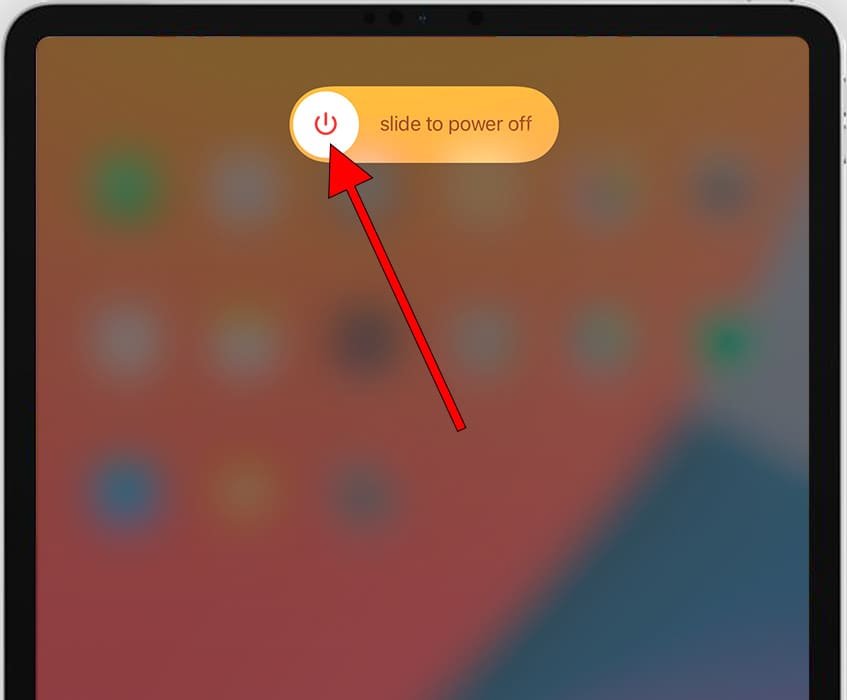
- Watch for the Slider: After a few seconds, a "power off" slider will appear at the top of your screen. This distinctive red slider indicates you've successfully triggered the shutdown prompt.
- Slide to Power Off: Using your finger, drag the slider from left to right.
- Wait for Completion: Your iPad's screen will go dark. Crucially, wait at least 30 seconds for the device to fully power down before assuming it’s off or attempting to restart it. This allows all background processes to conclude safely.
This button combination is standard for all modern iPads without a Home button, including your iPad 10th Generation, ensuring consistency across newer models.
Method 2: The Settings App — A Universal Approach
Sometimes, using physical buttons might be inconvenient, or perhaps your buttons are unresponsive due to a software freeze (though for a complete freeze, a force restart is better, as we'll discuss). Fortunately, Apple provides an alternative shutdown method right within the iPad's software settings. This method works for any iPad model, making it a reliable fallback.
Follow these steps:
- Open the Settings App: Tap on the grey Settings icon on your iPad's Home Screen. It looks like a set of gears or cogs.
- Navigate to General: In the left-hand sidebar of the Settings app, scroll down and tap on General.
- Find "Shut Down": Scroll to the very bottom of the General settings page. You'll see a distinct blue-text option labeled Shut Down. Tap it.
- Confirm and Slide: Just like with the button method, the "power off" slider will appear on your screen. Drag the slider from left to right to confirm you wish to turn off your iPad.
- Allow Time to Power Off: Again, once the screen goes dark, ensure you wait at least 30 seconds for your iPad to complete its shutdown sequence. Patience here is key to preventing potential data corruption.
This method is particularly useful if you prefer navigating through menus or if the physical buttons are not readily accessible.
Bringing Your iPad 10th Generation Back to Life: Turning It On
Once your iPad 10th Generation is completely powered off, turning it back on is universally simple, regardless of how you shut it down.
Here’s the single step:
- Press and Hold the Top Button: Press and hold the top button (the same one you used in the shutdown combination) for a few seconds.
- Wait for the Apple Logo: Continue holding until the familiar Apple logo appears on the screen. Once you see the logo, you can release the button. Your iPad will then proceed with its startup sequence.
Depending on your settings, you may need to enter your passcode or use Touch ID to unlock your device once it’s fully booted up. For more detailed instructions on managing your device's power, consider exploring additional resources like how to turn off your iPad 10 efficiently and effectively.
When Your iPad 10 Gets Stuck: The Force Restart
There will inevitably be times when your iPad 10th Generation becomes unresponsive. Apps might freeze, the screen might lock up, or the device might simply not react to any touches or button presses. This is when a "force restart" (sometimes called a hard reset) comes into play.
Important Considerations Before a Force Restart:
- Last Resort: A force restart should only be used if your iPad is completely unresponsive. It's not a substitute for a regular shutdown.
- Potential Data Loss: While generally safe, a force restart can cause currently running apps to crash and may result in the loss of any unsaved work in those apps. Always try a regular shutdown or wait a few minutes before resorting to this.
Steps to Force Restart Your iPad 10th Generation (No Home Button):
Since the iPad 10th Gen doesn't have a Home button, its force restart procedure is a specific three-button sequence:
- Quickly Press and Release Volume Up: Locate the volume up button (the one closer to the top button). Press it quickly and release it immediately. Do not hold it down.
- Quickly Press and Release Volume Down: Immediately after releasing the volume up button, quickly press and release the volume down button. Again, do not hold it down.
- Press and Hold the Top Button: Now, press and hold the top button. Keep holding it. Do not release it even when the power off slider appears.
- Wait for the Apple Logo: Continue holding the top button until the screen goes black and the Apple logo appears. Once you see the Apple logo, you can release the top button.
Your iPad will then boot up as usual. If your iPad remains unresponsive even after a force restart, it might indicate a more serious hardware or software issue, and you may need to contact Apple Support.
Common Questions and Troubleshooting Tips
Even with clear instructions, questions often arise about the nuances of powering off an iPad. Let's tackle some common ones:
How Long Should I Really Wait After Powering Off?
As mentioned, at least 30 seconds is the recommended waiting period. This isn't just arbitrary; it allows the iPad's operating system to properly close all open applications, save system states, and write any pending data to storage. Interrupting this process by turning the iPad back on too quickly could theoretically lead to minor file corruption or an unstable startup. While rare, it's an easy precaution to take.
Does Turning Off My iPad Save Significant Battery Life?
Absolutely. When your iPad is in sleep mode (screen off, locked), it's still performing background tasks: checking for emails, refreshing apps, maintaining Wi-Fi connections, and more. A full power off ceases all these activities, leading to minimal battery drain. For example, an iPad left in sleep mode overnight might lose a few percentage points of battery, whereas a fully powered-off iPad would barely register a drop over the same period. This makes a full shutdown ideal for periods of non-use, especially if you won't have access to a charger.
Is It Bad to Force Restart My iPad Frequently?
Force restarting should be considered an emergency measure. While it's generally safe and designed for when your device is frozen, it's not a gentle shutdown. Repeatedly cutting power abruptly can, over time, potentially stress the flash storage or lead to minor software glitches. It’s far better to use the standard power-off methods whenever possible. If you find yourself needing to force restart frequently, it's a strong indicator of an underlying software issue that might require further investigation (e.g., updating apps, checking for iOS updates, or even a factory reset).
What If My iPad 10th Generation Won't Turn Off?
If your iPad refuses to respond to either the button combination or the Settings app method, it's almost certainly a software freeze. In this scenario, your only recourse is the force restart procedure. If even a force restart fails, or if the screen remains black/unresponsive, your device may have a hardware problem, and contacting Apple Support would be the next step.
What's the Difference Between Locking My iPad and Powering It Off?
This is a key distinction:
- Locking/Sleep Mode: When you press the top button briefly or let the screen time out, your iPad goes into sleep mode. The screen turns off, but the device remains active in the background. Notifications still come through, apps can refresh, and it's ready for instant use with a quick unlock. This is for short breaks.
- Powering Off/Shut Down: This is a complete cessation of all operations. The device entirely shuts down, consuming minimal power. It takes longer to turn back on because the operating system has to boot from scratch. This is for extended periods of non-use, travel, or troubleshooting.
Beyond the Basics: Maintaining Your iPad 10th Generation
Mastering the power-off procedures is a small but significant part of being a savvy iPad user. To truly optimize your iPad 10th Generation's performance and longevity, consider these broader practices:
- Regular Restarts: Make it a habit to perform a full shutdown and restart at least once a week. This clears out temporary files, refreshes the operating system, and can prevent many minor issues before they become major headaches.
- Keep Software Updated: Apple regularly releases iOS updates that include performance improvements, bug fixes, and security enhancements. Keeping your iPad's software up-to-date can solve many issues that might otherwise lead to freezing or unresponsiveness.
- Monitor Battery Health: While a full shutdown saves battery, also be mindful of how you charge your device. Avoid consistently draining the battery to 0% or leaving it plugged in at 100% for extended periods. Apple's optimized battery charging features can help manage this.
- Manage Storage: A device with nearly full storage can often become sluggish or unresponsive. Regularly review your apps, photos, and files, and offload anything you don't need to free up space.
By understanding the proper ways to manage your iPad 10th Generation's power, you're not just performing a simple task; you're actively contributing to its stable operation and extending its useful life. It's a small habit with big returns, ensuring your device is always ready to perform when you need it most.